You need to log in to view your token.
Quick Setup Guide
1.1 Download NotiTrade EA
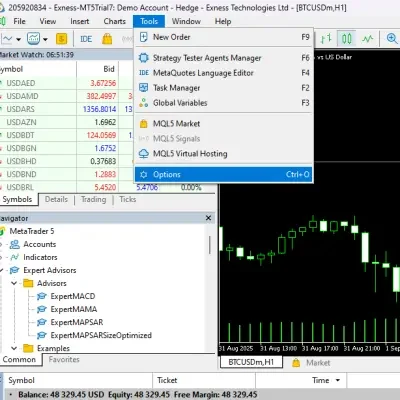
Install it in MT5. Open File → Open Data Folder → MQL5 → Experts.
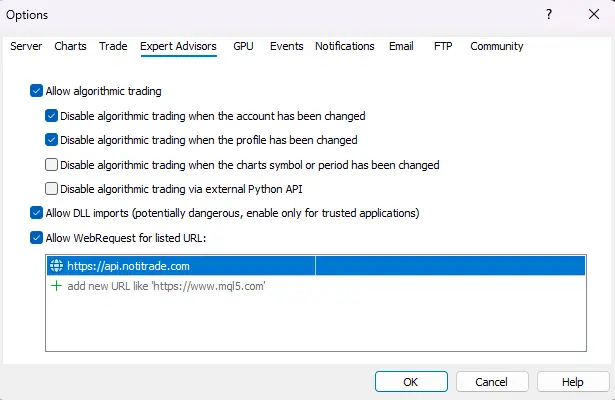
1.2 Allow WebRequest
Enable WebRequest for the EA to communicate. URL: https://api.notitrade.com
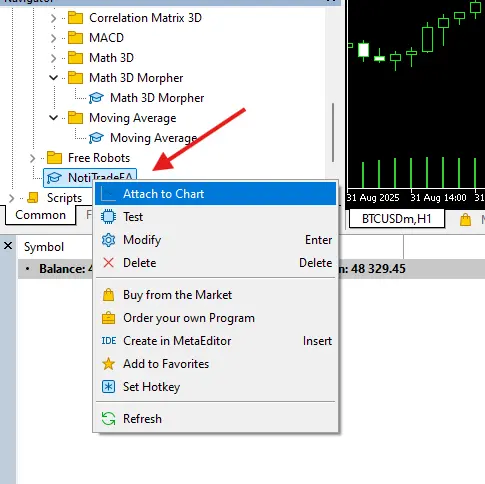
1.3 Attach & Configure EA
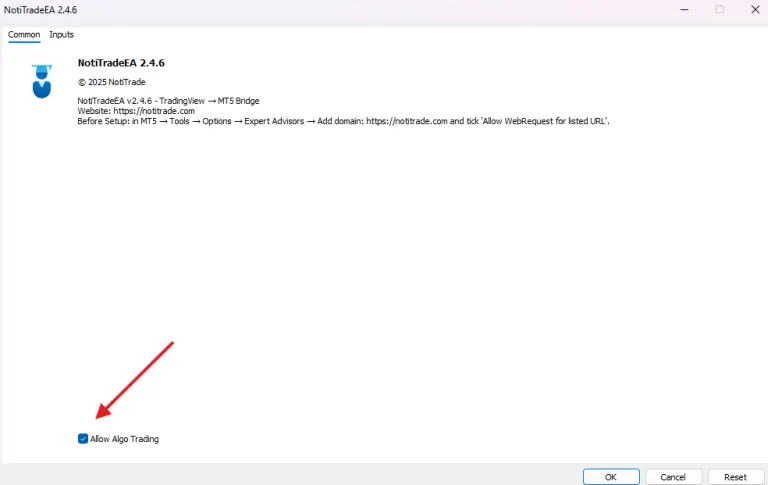
Attach the EA to your MT5 chart and enter your Token.
Configure EA: Volume, Stoploss, Takeprofit, Breakeven. Daily loss/profit, Trading time, News filter …
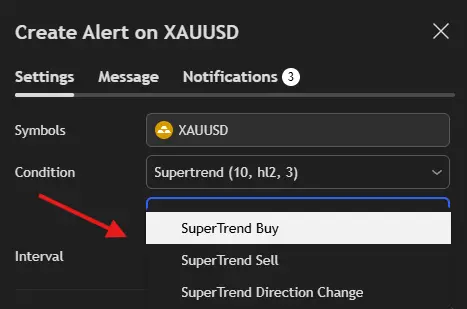
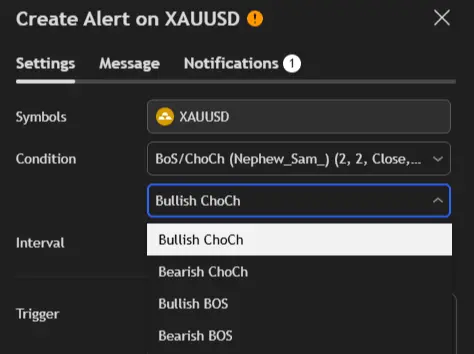
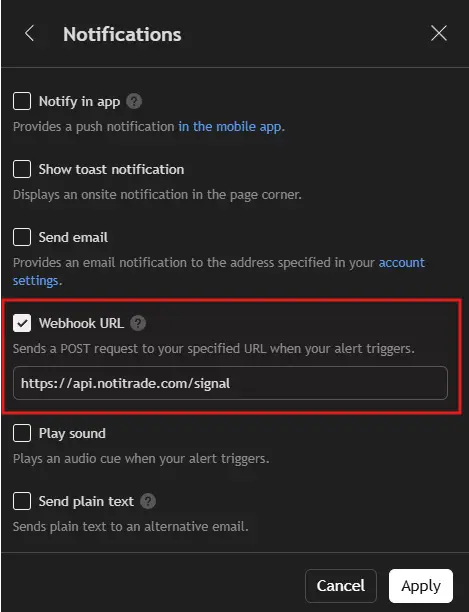
2.1 Enable Alerts on Your Indicator
Open your TradingView chart, select your indicator, and click “Add Alert”.
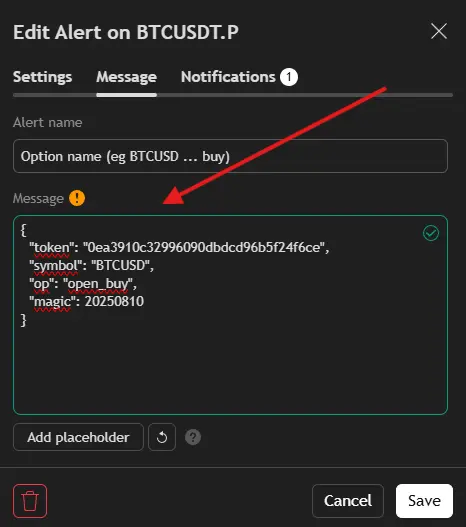
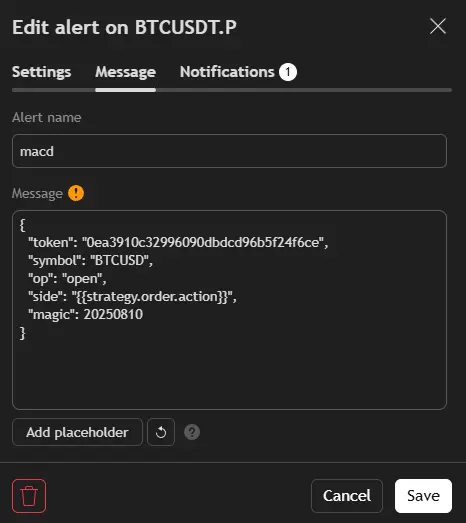
2.2 Create Buy/Sell Alert Message
Generate JSON, then copy paste it into your TradingView alert Message.
Setup FAQ
Should I use Fixed SL/TP or ATR-based?
Use Fixed SL/TP for simple strategies. Use ATR-based SL/TP if you want dynamic levels that adapt to market volatility.
How does lot size work?
If your TradingView alert includes volume, the EA will use that. Otherwise, it will use the lot size you set in the EA.
Do I need to enable all risk management features?
No. You can enable only what you need, such as breakeven or daily loss/profit limits, depending on your strategy.
What happens if I enable the time filter?
The EA will only execute trades during the selected hours based on your MT5 server time.
How should I use the news filter?
Enable it if you want to avoid trading during high-impact news. You can set how many minutes before and after news to pause trading.
What does reverse mode do?
For strategy signals (not indicators). When enabled, it closes the current trade and opens the opposite one. If disabled, both trades are kept.